OpenHands Agent Canvas: How to Install It on Windows and Mac
By Shah Rukh, software developer · · 7 min read
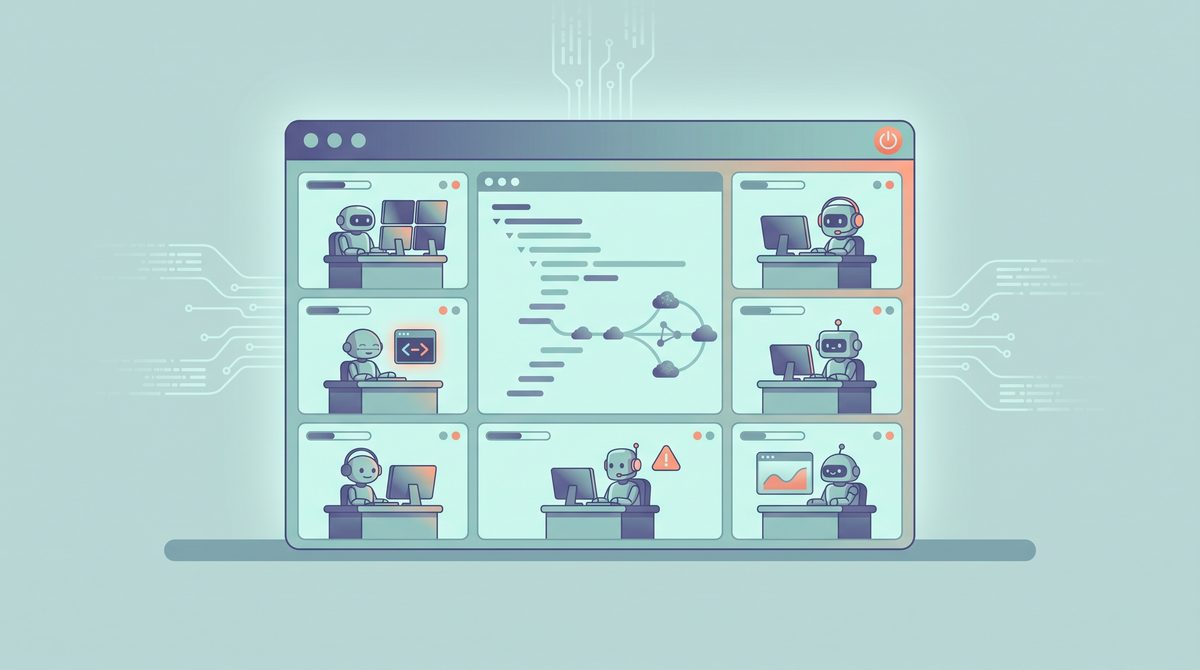
OpenHands Agent Canvas is an open-source control centre for AI coding agents. It runs on your own computer, opens in your browser, and lets you start coding conversations and wire up automations. Here’s what it actually is, what you need before you start, how to get it running on Windows and Mac, and the handful of things I’d sort out before letting it loose.
Read this bit first. The software itself is free, but the AI model behind it isn’t part of the deal. You bring your own, and that usually means a paid API key or an existing subscription to an agent like Claude Code or Codex. One more thing: two of the four install options run the agent directly on your computer, and the project is upfront that the agent then has full access to your filesystem. If you’re new to this, go with the Docker option.
What it actually is
A coding agent is an AI program that reads a project, edits files and runs commands on your behalf. The OpenHands repository now holds Agent Canvas, which the project calls “the self-hosted developer control center for coding agents and automations”. Self-hosted just means you run it yourself rather than leaning on someone else’s website.
It ships with the open-source OpenHands agent. The project says it can also drive Claude Code, Codex, Gemini, or any agent that speaks ACP (Agent-Client Protocol, which is basically a shared language apps use to talk to agents). Worth knowing: the README still marks the project status as beta.
| Part | What it does |
|---|---|
| Agent Canvas | The page you open in your browser to chat with agents and manage them |
| Agent Server | The program that actually runs the agents on a machine |
| Automation Server | Runs agents on a schedule or when an event happens |
| Backend | Any machine running an Agent Server: your laptop, a Docker container, a cloud server |
The project says automations can hook into services like Slack, GitHub, Linear and Notion. And a single Canvas can connect to several backends and switch between them, which is handy if you run agents in more than one place.
What you need before you start
- For the Docker option: Docker Desktop on Windows or Mac. Docker runs software inside a sealed box called a container.
- For the npm option: Node.js 24 or later, and
uv(a Python tool the launcher uses to run the Agent Server). - A projects folder holding the code you want the agent to work on.
- An AI model. The project says it works “with any LLM” (large language model). The repository lists no prices, so what you pay comes down to the provider you pick. Agents such as Claude Code, Codex and Gemini can sign in with a subscription login or an API key, according to the project’s ACP document.
The code is under the MIT licence, so you’re free to use and modify it. OpenHands also sells OpenHands Cloud and OpenHands Enterprise, but those are optional. The repository only gives minimum hardware for a server install: it says 2 vCPU and 4 GB RAM “is plenty for a single user”.
Things I’d sort out first
- Use the Docker sandbox. With Docker, the agent can only touch the folders you share with it. Without it, the agent can read and change anything your user account can, which is a lot.
- Back up your projects. Commit to Git or copy the folder before you let an agent edit it. And share a folder that holds only the projects you actually want touched.
- Keep it on your own machine. The quickstart publishes port 8000 on
127.0.0.1only, so other devices on your network can’t reach it. Leave that alone unless you’re following the project’s self-hosting guide. - Know where the secrets live. Settings get saved in a
.openhandsfolder in your home directory. API keys live in the app under Settings → Secrets. The self-hosting guide also points out that the browser’s local storage holds the session key of every backend you register, so don’t use a shared browser profile. - Your code goes to the AI provider. Whatever the agent reads gets sent to the model provider you chose. Check that provider’s terms before you point it at private or client code.
- Pin what you run. The quickstart uses a fixed image tag,
1.24.0. Copy the commands from the official README, not from some random site. - Review what the agent did. You’re on the hook for code the agent writes, licence issues in it included.
Installing OpenHands on Windows
The project’s Windows document only covers the Docker option. It doesn’t document running the npm option on native Windows, so don’t go looking for that.
- Install Docker Desktop for Windows and start it.
- Open PowerShell or Windows Terminal.
- Run these commands. They pull the image, create a
projectsfolder and a.openhandsfolder, and start the container.
docker pull ghcr.io/openhands/agent-canvas:1.24.0

$env:PROJECTS_PATH = Join-Path $HOME "projects"
New-Item -ItemType Directory -Force -Path $env:PROJECTS_PATH, (Join-Path $env:USERPROFILE ".openhands") | Out-Null

docker run -it --rm `
  -p 127.0.0.1:8000:8000 `
  -e AGENT_CANVAS_ALLOW_LAN_SESSION_KEY=true `
  -v "$($env:USERPROFILE)\.openhands:/home/openhands/.openhands" `
  -v "$($env:PROJECTS_PATH):/projects" `
  ghcr.io/openhands/agent-canvas:1.24.0
Then open http://localhost:8000/canvas in your browser. The agent can reach any project inside your projects folder.
There’s also a mode that gives every conversation its own container. On Windows the project says that has to run inside WSL 2 (Windows’ built-in Linux), because “the native Windows host is not supported by this runtime”.
Installing OpenHands on Mac
Mac gives you two documented routes, and the same commands work on Linux too.
Route 1: Docker sandbox (the one I’d pick). Install Docker Desktop, open Terminal, and run:
export PROJECTS_PATH="$HOME/projects"
mkdir -p "$PROJECTS_PATH" "$HOME/.openhands"

docker run -it --rm \
  -p 127.0.0.1:8000:8000 \
  -e AGENT_CANVAS_ALLOW_LAN_SESSION_KEY=true \
  -v "$HOME/.openhands:/home/openhands/.openhands" \
  -v "$PROJECTS_PATH:/projects" \
  ghcr.io/openhands/agent-canvas:1.24.0
Open http://localhost:8000/canvas.
Route 2: npm, no sandbox. For this one you need Node.js 24 or later and uv. The self-hosting guide says to install both with brew on macOS. Then run:
npm install -g @openhands/agent-canvas
agent-canvas
Open http://localhost:8000 (no /canvas on this route). Don’t forget the warning though: this runs the agent straight on your Mac with full file access.
If you want each conversation in its own Docker container, keep Docker Desktop running and start it like this instead:
OH_CONVERSATION_RUNTIME=docker agent-canvas
The project is clear that this only isolates the conversations. Canvas itself and the automation service still run on your Mac.
First run
- Open the address for your install route in a browser.
- Walk through the onboarding screens to pick an agent. The default is the OpenHands agent; Claude Code, Codex and Gemini are on offer too.
- Add your model details. API keys go under Settings → Secrets, and you can swap the agent later under Settings → Agent.
- Start a new conversation, pick a project from your projects folder, and hand the agent a small, low-risk task to begin with.
The repository documents the settings screens but not a full click-by-click walkthrough, so the exact wording you see on screen might differ a little.
Settings worth knowing
| Option | What it does |
|---|---|
agent-canvas --frontend-only | Starts only the web page part |
agent-canvas --backend-only | Starts only the Agent Server and automation backend |
--host 0.0.0.0 or OH_BIND_HOST | Listens on all network interfaces. The session key is then not filled in for you; you must enter an API key in the page |
--public | Public mode for servers. Visitors must paste the key before using the page |
LOCAL_BACKEND_API_KEY | The key that protects the Agent Server. Set it to a strong value. If you leave it unset, the launcher generates and saves one |
If you ever expose the tool beyond your own computer, the project’s guide suggests creating the key with openssl rand -base64 32 and locking down the firewall before the first start. Our password generator can also spin up a long random value right in your browser.
Updating and uninstalling
The project doesn’t document update or uninstall steps, which is a small gap to be aware of. For Docker, the version is the tag at the end of the image name, so check the README for the current one. The --rm flag in the quickstart removes the container when you stop it, and your settings stick around in the .openhands folder.
When things go wrong
| Problem | Likely cause and fix |
|---|---|
| Page does not load after a Docker start | Use http://localhost:8000/canvas. Only the npm and source routes use the address without /canvas. |
docker command fails | Docker Desktop is not running. Start it and try again. |
| Agent cannot see your project | The project must sit inside the folder you set as PROJECTS_PATH, and that folder must exist before you start the container. |
agent-canvas fails to start | Check that Node.js is version 24 or later and that uv is installed. |
| Page asks for an API key | You are in public mode or listening on all interfaces. Enter the value of LOCAL_BACKEND_API_KEY. For Docker, the README gives a command to read the generated key from the container. |
| Multiple-sandbox mode fails on Windows | It is not supported on native Windows. Run it inside WSL 2 with Docker Desktop’s WSL integration turned on. |
| Two conversations overwrite each other’s files | They share the same folder. The project advises separate directories or worktrees. |
This guide is based on the project’s repository as it was on October 2, 2026. Commands, version numbers and features can change, so check the official README before you install. ToolsCloset is not connected to the project.
Frequently asked questions
Is OpenHands Agent Canvas free?
The software is open source under the MIT licence and free to install. The AI model is not included, so you normally pay a model provider or use an existing agent subscription. OpenHands Cloud and Enterprise are separate paid offerings.
Does OpenHands work on Windows?
Yes, through Docker Desktop. The project’s Windows document covers the Docker option only. The mode that gives each conversation its own container needs WSL 2 because native Windows is not supported for it.
Which address do I open after installing?
For the Docker image, open http://localhost:8000/canvas. For the npm or source install, open http://localhost:8000.
Is it safe to run without Docker?
The project warns that without a sandbox the agent has full access to your filesystem. Use the Docker option unless you understand that risk, and back up your projects first.
Can I use Claude Code or Codex with it?
The project says Agent Canvas can run OpenHands, Claude Code, Codex, Gemini or any ACP-compatible agent. You still need your own login or API key for those agents.
Where are my API keys stored?
API keys are kept in the app under Settings, in the Secrets panel, and app data is saved in the .openhands folder in your home directory. Do not share that folder or your browser profile.
How do I update or uninstall it?
The repository does not document update or uninstall steps. With Docker, the version is the image tag shown in the README, and stopping the container removes it because the quickstart uses the --rm flag.
More AI tips
Free Claude Code Setup Guide
Run the Claude Code app with free AI models on Windows or Mac. Full steps, plus the precautions most guides skip.
EmailOSINT Review and Guide
See which accounts, data breaches and stolen-password logs are tied to your email, and what to do about each result.
FastMCP for beginners
Turn a plain Python function into a tool an AI assistant can call. Setup on Windows and Mac, step by step.
Set up Context Mode the easy way
Context Mode is an MCP plugin that stops your coding agent's context window from filling up with raw tool output.
TradingView MCP Guide
Self-host the free TradingView MCP server on Windows or Mac, or pay for hosting — and mind the data-not-advice caveat.
AWS MCP servers, explained
AWS publishes a big set of open-source MCP servers. Here's what they do and how to wire one into your AI coding assistant.
MCP servers in TypeScript
A beginner-friendly look at mcp-use for building and connecting MCP servers, clients and agents in TypeScript.
Dify Self-Hosting Guide
Run the Dify AI app builder on your own computer with Docker Compose, and know the costs and licence limits first.
LibreChat Docker Setup Guide
Run your own ChatGPT-style chat app on your computer with Docker. Full steps, real costs and safety checks.
Unity MCP Setup Guide
Let Claude Code, Cursor or Copilot work inside the Unity Editor. Full install steps, plus the precautions to take first.
sprite-gen Setup Guide
Turn one character drawing into a transparent game sprite sheet. Setup steps, real costs and precautions.
Logo Design Skill Setup Guide
Add a free logo-design skill to Claude or another AI agent on Windows or Mac, with the precautions to take first.
Openvid Screen Demo Guide
Record your screen and turn it into a polished demo in the browser, or run Openvid yourself on Windows or Mac.
ReelMimic Setup Guide
Set up ReelMimic to make an original 2D animation in the style of a reference video, with the copyright checks to do first.